A Virtual Console in your DAW… how fun! The signal flow of a classic analogue desk! The sound of transformers and transistors! The impact of circuits and summing amps on your signal! That analogue saturation and warmth! The intermodulation distortion as signals combine in unpleasant ways, causing non-musical harmonics! The voltage sags that happen when louder signals suck up the power, affecting other channels! The hum! The hiss! The heat! The repair bills as things go poofsky!
Our Sound Techniques Alpha Range is your ticket to a virtual console in your DAW! Minus the intermodulation distortion, the hum, the hiss and the voltage sags, which we didn’t model, because back in the good old days people didn’t want the console to do that.
I love analogue equipment but at least 70% of recording technique back in the day was all about avoiding problems in the process. I have no idea why anyone would model that stuff. It’s like inventing a drug with all highs and none of the lows, but let’s add back the brain damage and addiction part. Sounds like social media.
The Alpha Range Channel can give you the signal path of a classic Sound Techniques A-Range console, without the analogue problems and the brain damage, but you might become addicted to mixing everything through an Alpha Range virtual console, because it does sound awesome, and with a bit of CPU management, you can run plenty of channels. I easily get 30+ out of an M4 Mac Mini with 16 gigs of ram. Dan gets in the 40s, and customers have reported channel counts way beyond that. Here’s how you do it:
To replicate a console, you need channels that sound like the console and summing buses that sound like the console. The Alpha Range has all that. But if you just drop the plugin on 30 channels and ten buses without a bit of thinking, you’ll probably use up all your processing power and lock up your session.
It is important to know what to turn off. Each instantiation of the plugin, any plugin, requires a bit of processing power. On the Alpha Range, because of the math involved to recreate the unique sound of the hardware, certain aspects of it REALLY tax the CPU. These are the Mic Preamp, the EQ, and the Summing Amp circuits. We need to know when to turn these things off and on.
There are two basic “parts” we will use to build our virtual console. The first is an All-Off Channel configured plugin, the second is a Summing Amp configured plugin.
All-Off Channel Configuration
An analogue console set to mix has everything out of circuit—it’s basically an input with a fader and a pan. If it is an older style console, there will be some transformers in there as well. The All-Off setting on our plugin is a line input feeding into a transformer, feeding into the faders, like this: LINE->TRANSFORMER->FADERS.
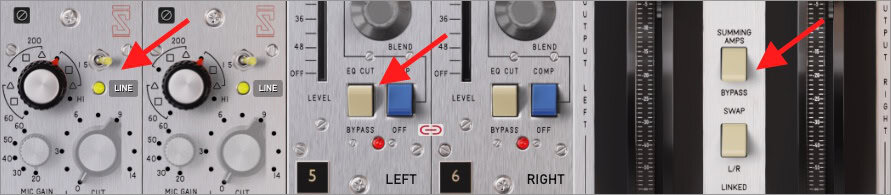
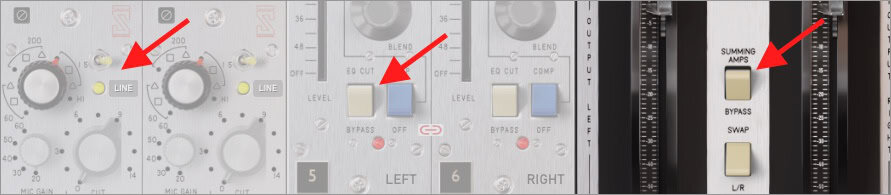
You get this by switching MIC/LINE to LINE, switching the EQ to CUT, and switching the SUMMING AMPS to BYPASS. Sections that are switched off will be greyed out. Audio signal isn’t processed by these areas because they’re pulled out of the plugin’s algorithm, so there’s no CPU hit either.
However, you’ll notice, if you bypass the plugin, that when it is in, there is a change in the sound of the signal. That’s because it’s still going through the transformer emulation, and that is to your advantage: by adjusting the transformer setting and clicking the Korneff nameplate and the TRANSFORMER tab, you can change the response and the saturation of a channel quite a bit without adding much to the CPU cost.
Now, if you want EQ, uncut the EQ and you have not only the EQ, but the EQ makeup gain amplifier to work with. Want more saturation capabilities? Switch LINE to MIC and now you can saturate the preamp. And of course, you can switch in the ElektraComp. The basic idea is to only turn on the components of the channel that you actually use.
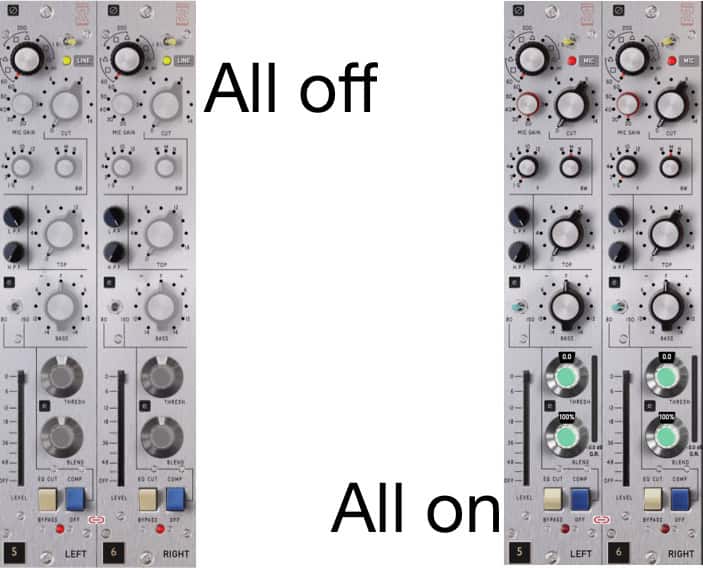
When I’m doing a virtual console mix, I start off by putting plugins set to All-Off on all the channels involved. I save a preset to do this and I also have a template set this way. Another trick: I add a GAIN plugin (or use Clip Gain) at the start of my insert chain and manually adjust levels so that the average through a channel is around -18 to -14 dBFS. That’s 14 to 18 dB of headroom, which should be plenty for you, and it makes sure you’re not overloading a plugin somewhere down the insert chain.
Summing Amp Configuration
The Summing Amp configuration is just like the All-Off except the SUMMING AMPS are switched in. So the signal flow is LINE->TRANSFORMER->FADERS->SUMMING AMPS. Again, save a preset of this.
Insert the Alpha Range Channel onto your summing buses, so obviously your Stereo Bus, and if you’re submixing drums, guitars, vocals, keys, etc., you can stick one on each bus as well.
Note that you don’t have to stick an Alpha Range on all your summing buses. You’ll get plenty of Alpha Range sound from the channels and the Stereo Bus, but if you want even more, add some more buses. I usually add one on drums.
When I have multimic’d guitar parts scattered on a few tracks, I prefer to sum those and then process them all at once using the Alpha Range Channel. I often do the same thing for bass, and depending on the mix, most of my processing might be more on the bus groups than the individual channels.
Use those Transformers
Regardless of what you’ve switched on or off, any signal through the Alpha Range Channel first goes through a transformer, and this is a big part of the plugin’s sound. Use the INPUT TRANSFORMER IMPEDANCE knob to experiment with different settings.
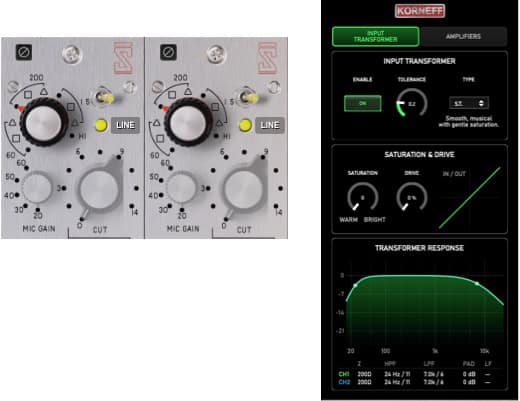
There are three different transformer ranges to play with: 1500 ohms rolls off a little bit of the highs; 200 ohms rolls off highs and also some bottom end; 60 ohms hits the highs heavily and has a bump around 80 Hz. The lone dot to the far right is no roll-off. The DOT is just the frequency response change; the triangle and the square are pads which also lower the gain. When using LINE IN, I ignore the triangles and squares and switch between the different dots, rolling off highs as needed. I also use the 60 ohm dot to add some lows to kicks and bass.

If you’re using the MIC input, use the MIC GAIN along with impedance and pad settings to get different qualities of saturation.
Using either MIC or LINE input, try out some transformer saturation, especially if tracks need to get a little brighter and push out of the mix a bit. Click the Korneff nameplate and then the INPUT TRANSFORMERS tab. Turn up DRIVE to push more signal through the transformer and cause some saturation, and then adjust the tonality with the SATURATION knob. I think of the transformers as a subtle equalizer.
As a challenge, I mixed some songs using just the Alpha Range. It is surprisingly capable, and there were only a few times that I really wanted a different EQ or compressor because I just couldn’t get exactly what was needed. There was definitely a reason everyone wanted to mix on a Sound Techniques.